Firefox Extension Settings
Firefox uses a stricter permission model than Chrome — after installing the extension, you need to complete two more setup steps before the sidebar will show up on sites like ChatGPT and Gemini.
1. Pin Extension and Access Settings
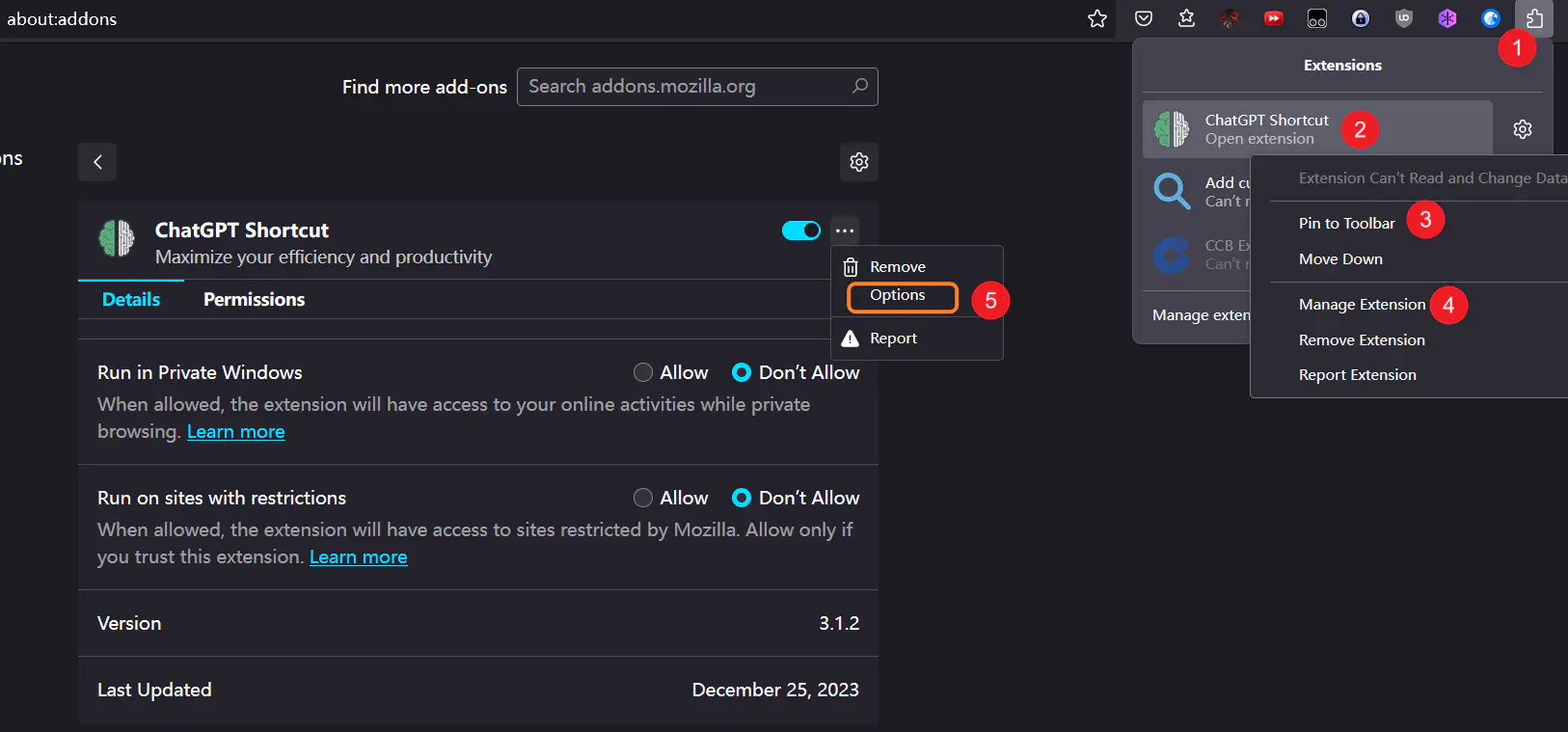
First, choose "Pin ChatGPT Shortcut Extension" (Pin to Toolbar) on the Firefox toolbar. Then open the Extensions page, find the ChatGPT Shortcut entry, and select "Options" to enter the extension's settings interface. The specific steps are shown below:
2. Authorize the Extension to Run
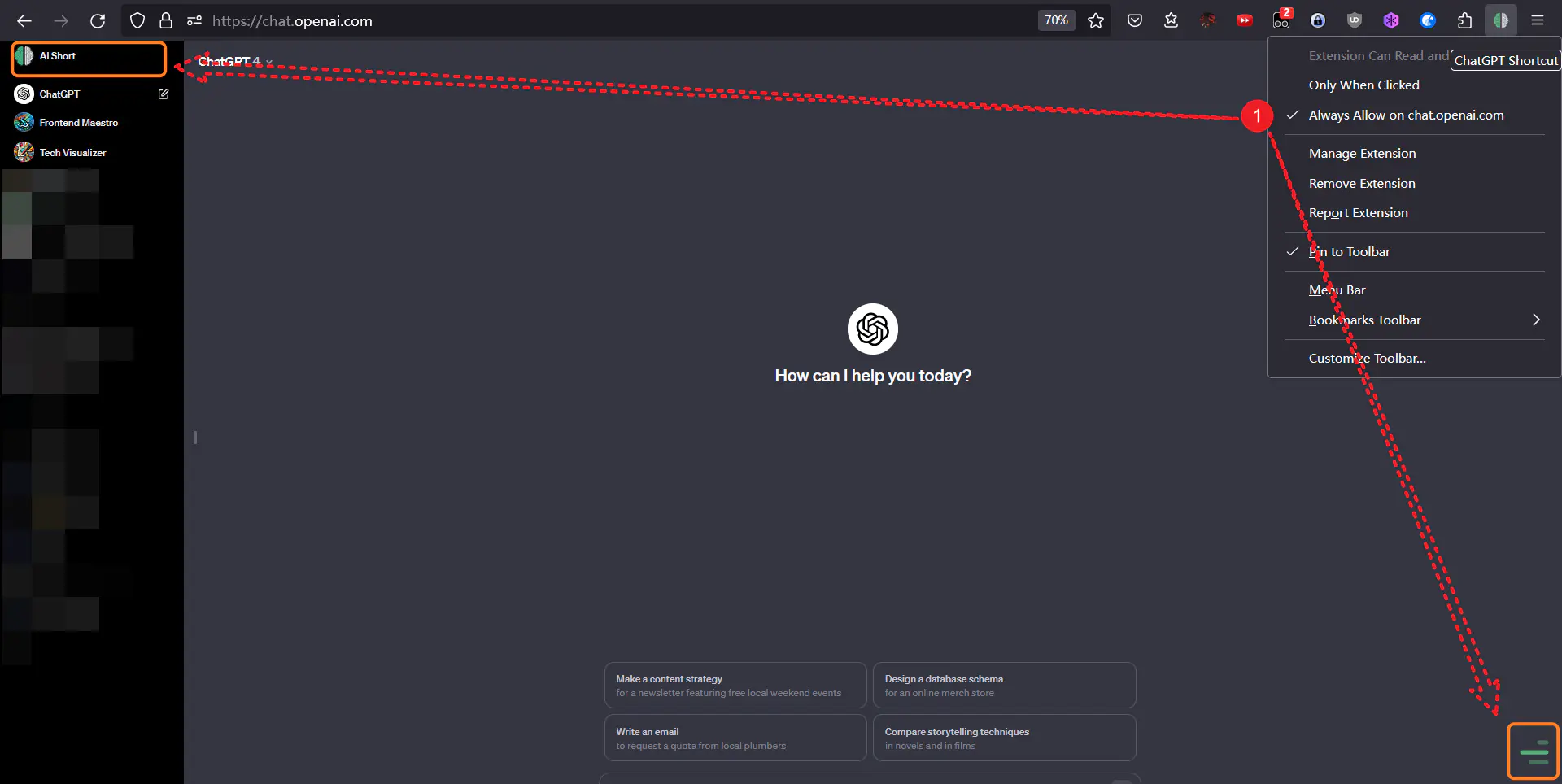
Next, to ensure the extension runs correctly on sites like ChatGPT and Gemini, right-click the extension icon while on those sites and select "Always allow on ***". This grants the extension permission to add a sidebar on the specified domain.
After successful installation, check the Plugin Usage Tutorial.