Chrome CRX Extension Local Installation Guide
This guide assumes you've already downloaded and extracted the CRX package from the installation page (the .crx file is inside the extracted folder).
⚠️ Two common pitfalls:
- You must drag the
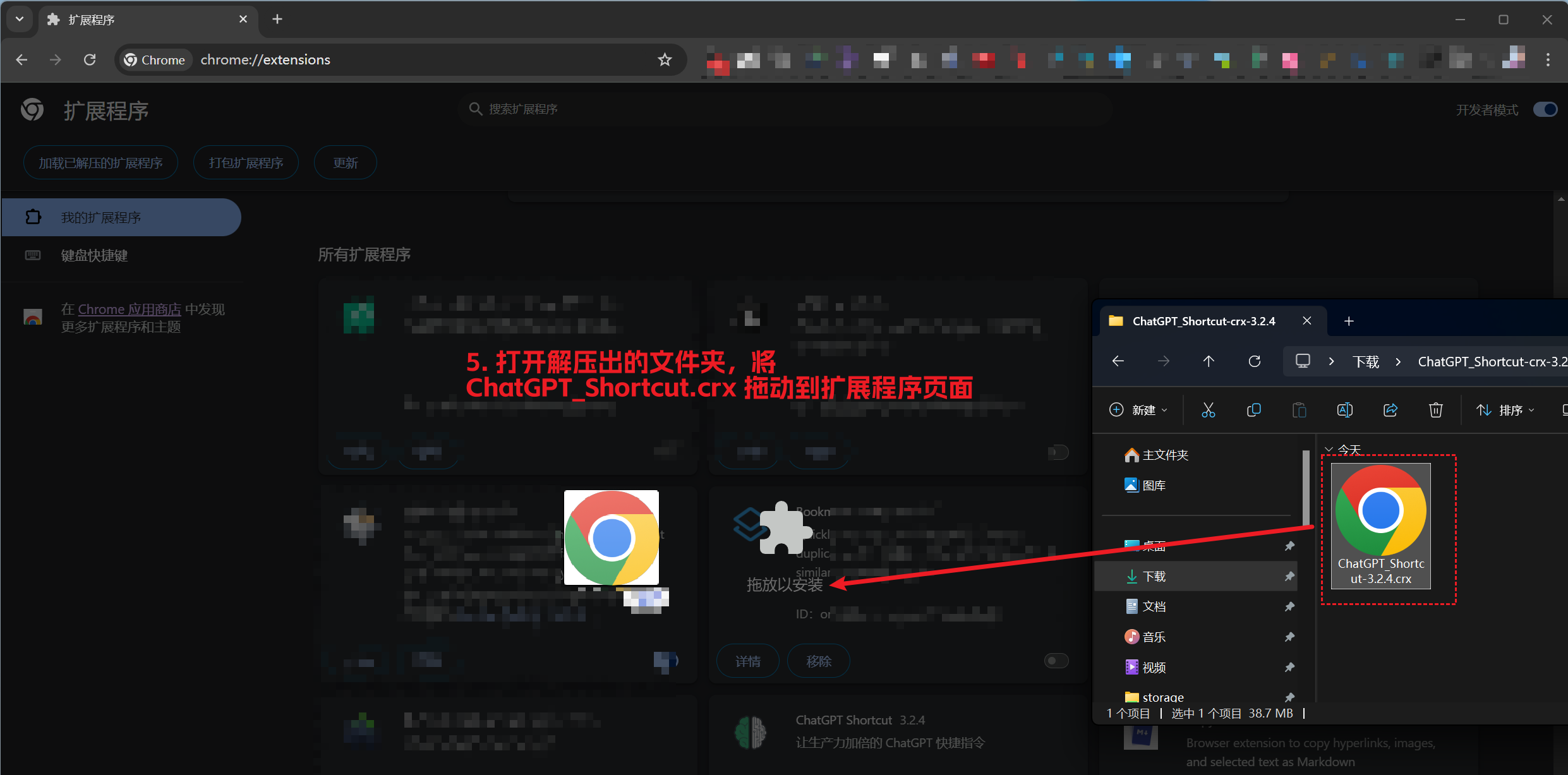
.crxfile (the one inside the extracted folder) into the extensions page — not the zip package itself- You must drag it in — do NOT click "Load unpacked" (that button is for the zip version)
Enable Developer Mode
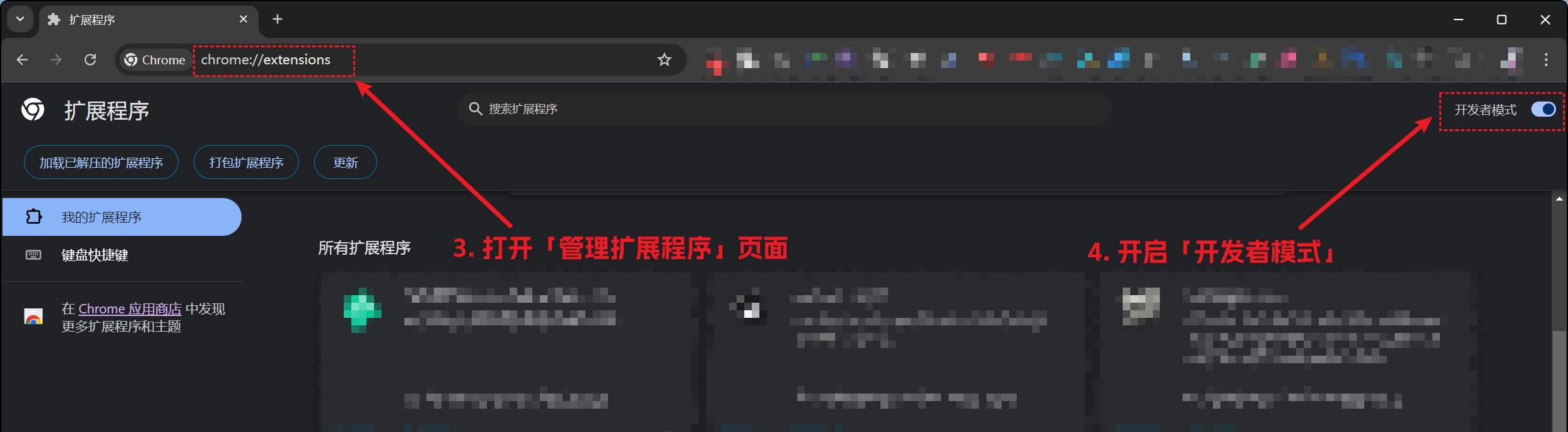
Open Chrome's "Manage Extensions" page and turn on "Developer mode".
Copy the following address, paste it into the browser address bar, and press Enter. Turn on "Developer mode" in the top right corner of the page.
chrome://extensions
Install Extension
Install the ChatGPT Shortcut extension (Note ⚠️: drag in the .crx file — do NOT click "Load unpacked").
After successful installation, check the Plugin Usage Tutorial.
Installation Issues?
-
Windows users: Have you unzipped the downloaded installation package (instead of just double-clicking it open)?
-
Is "Developer mode" enabled? If not, see step 2 above.
-
Did you drag the .crx file into the "Extensions" page? Note ⚠️: do not click "Load unpacked" — you must drag the .crx file in.
-
Browser refuses to install .crx files? Try the zip version instead! Click here for the zip installation tutorial.