My Collection
Once you're logged in, My Collection gives you a bookmarks-style space for your favorite prompts — drag to reorder, tag for context, and filter by tag when you need something fast.
:::tip Online vs. Offline In the online edition, collection data is stored on the server (login required). In the offline edition, collection data is stored locally in the browser (localStorage, no login required). The functionality is the same. :::
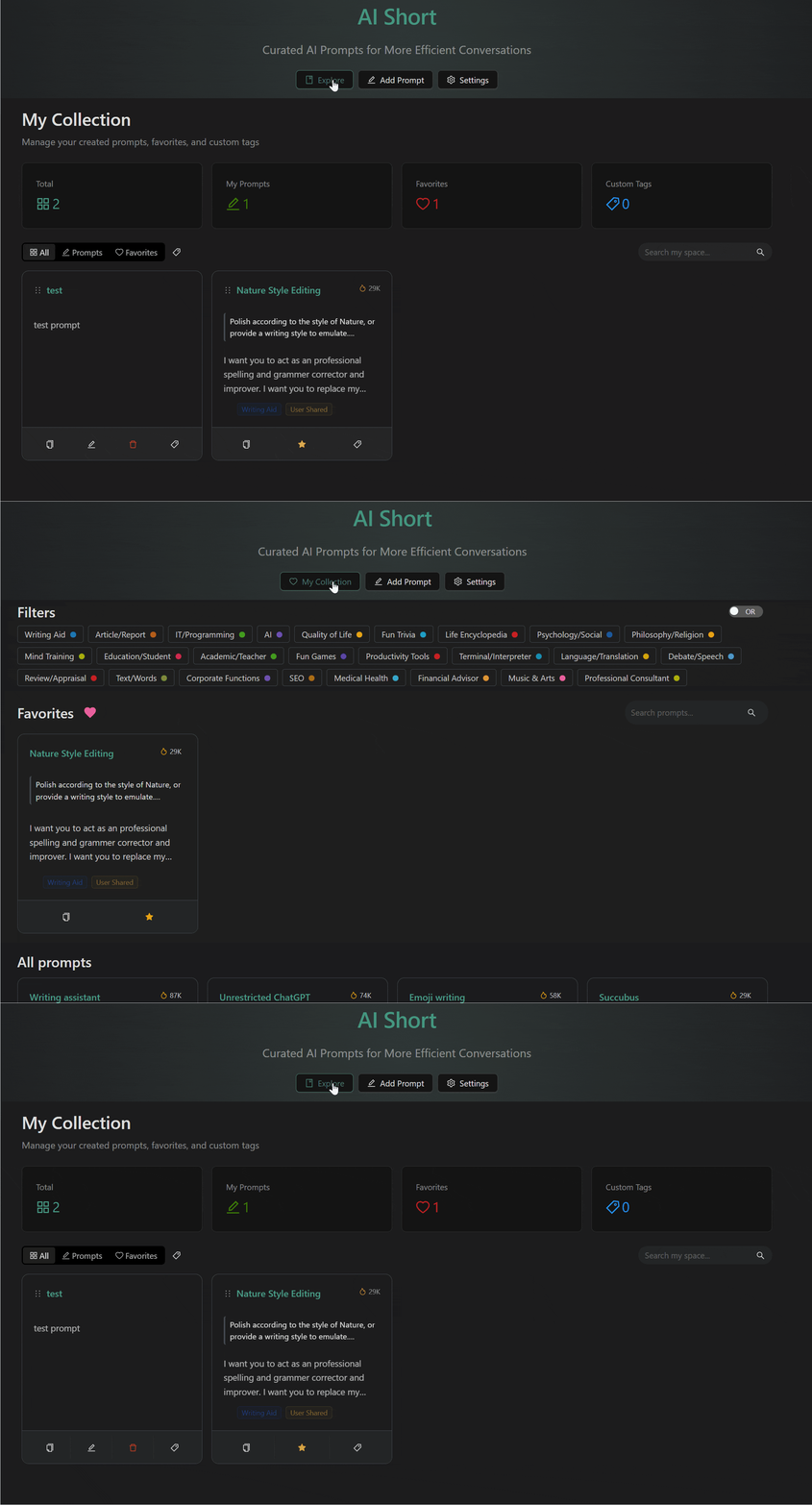
View Switching
The view switcher at the top of the homepage offers two modes:
- My Collection: Shows your collected and custom prompts
- Prompt Library: Browses the public prompt library
Your browser remembers the last view you used, so you pick up right where you left off.
Add to Collection
Click the "Collect" button on a card to add it to My Collection.
Collecting a community prompt automatically casts an upvote, helping quality content gain more visibility.
Remove from Collection
In the My Collection view, click the heart icon on a card to remove it.
Custom Tags
Add tags to your collected prompts for easier classification:
Add Tag
- Click the tag icon on the control bar
- Pick an existing tag, or click "+" to create a new one
- New tags support custom names and colors
Manage Tags
Click "Manage Tags" to open the management dialog:
- Rename tags
- Change tag color (11 preset colors)
- Delete tags

Filter by Tag
The filter bar in the My Collection view supports filtering by your custom tags.
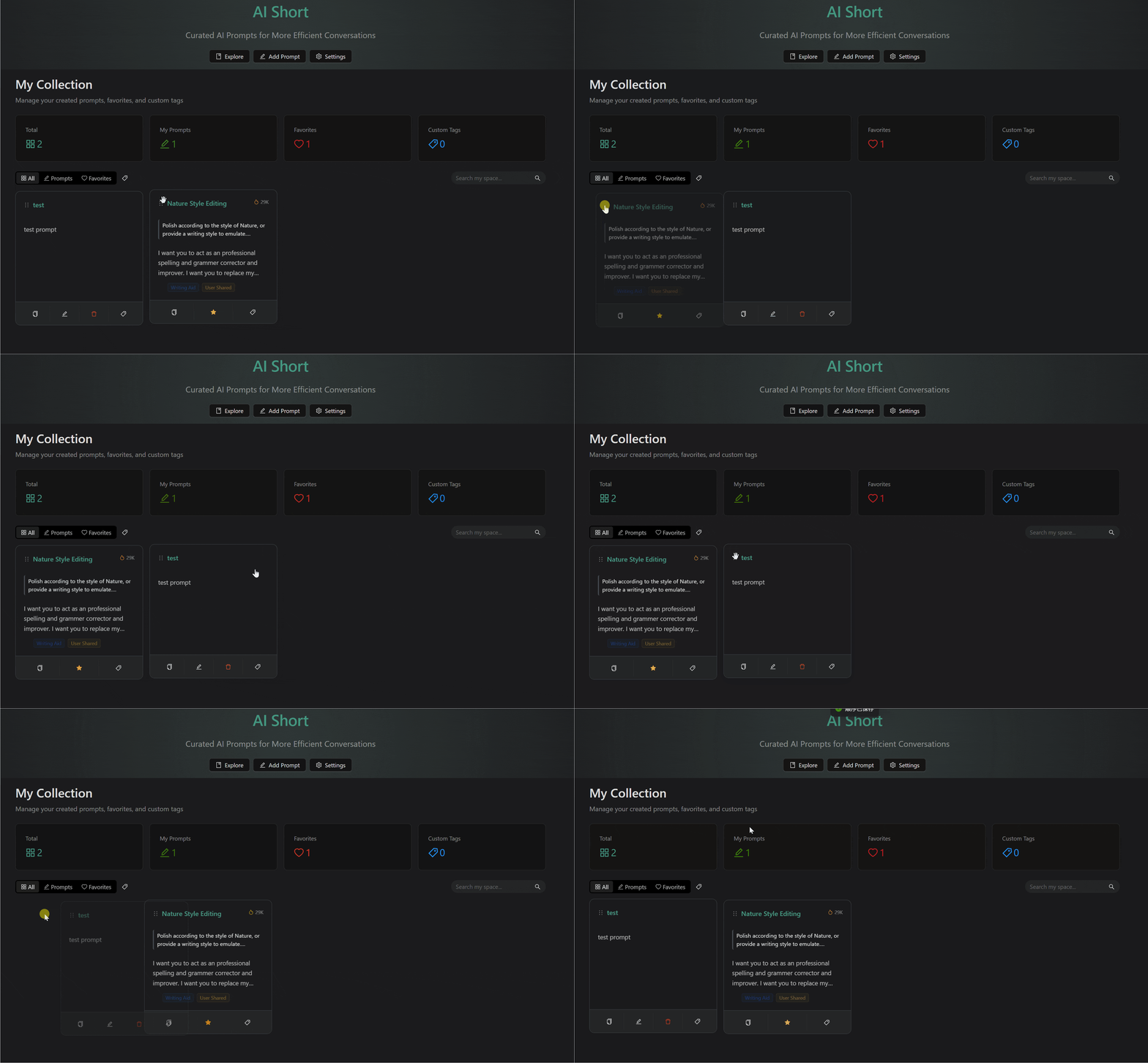
Drag and Drop Sorting
Drag-and-drop reordering is supported in the My Collection view:
- Grab the drag handle on the left edge of the card
- Drop it at the target position
- The new order saves automatically (to the server in the online edition, to your browser in the offline edition)
Sorting is only available in the My Collection view.
Related Documentation
- Custom Prompts - Create and manage prompts
- Interface Guide - Search and filter
- Account Management - Login and settings