Custom Prompts
After logging in, you can create your own prompts and save them to your account for quick access later. Custom prompts appear in the "My Collection" view.
Create Prompt
- Click the "Add" button in the top right corner
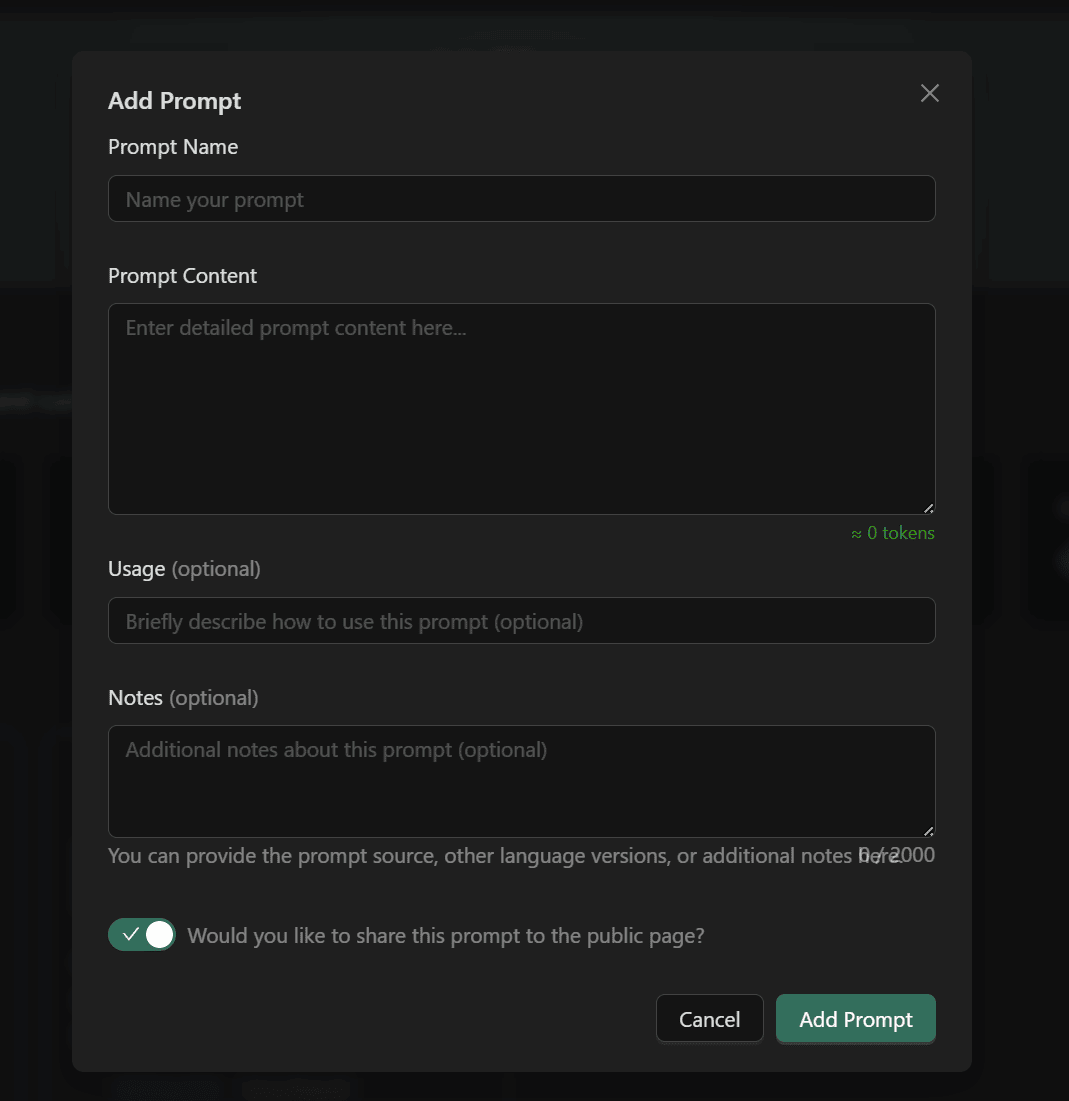
- Fill in the "Create Prompt" dialog:
- Prompt Name (required): A name for the prompt
- Prompt Content (required): The body of the prompt
- Usage (optional): A short description of what the prompt does
- Notes (optional): Source, other-language versions, or supplementary notes
- The "Would you like to share this prompt on the public page?" switch at the bottom is on by default — turn it off to keep the prompt private
- Click "Create Prompt" to submit
💡 Example — a "Standup Update Generator" prompt:
- Prompt Name: Standup Update Generator
- Prompt Content: You are a concise communication assistant. Turn the following notes into a daily standup update with three sections — Yesterday, Today, Blockers. Keep each bullet short and outcome-focused: [my raw notes]
- Usage: Converts messy notes into a clean standup update
- Notes: Run before the morning standup
Edit Prompt
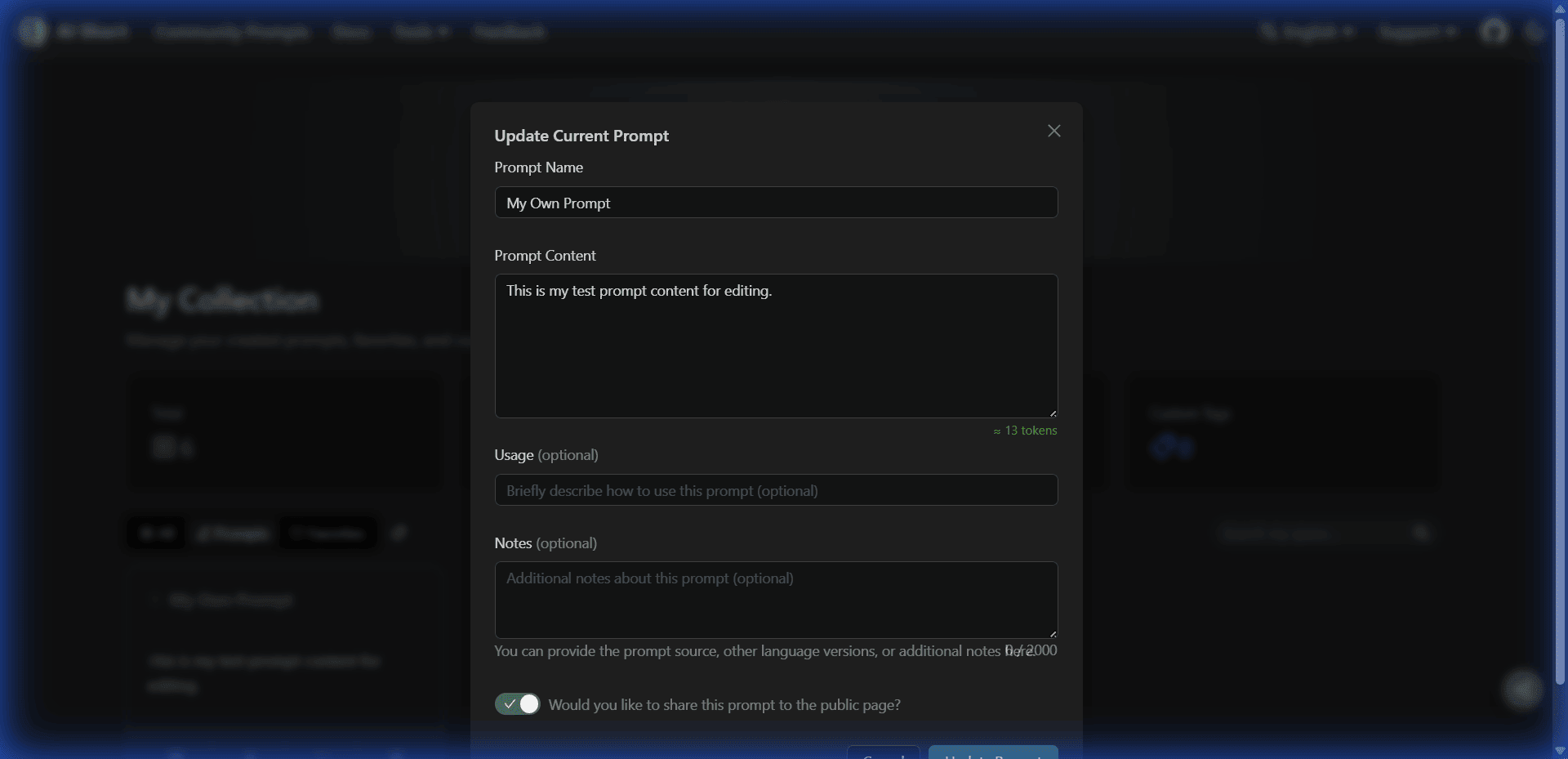
In the My Collection view, click a prompt card you created to open the "Edit Prompt" dialog. You can:
- Modify name, content, usage, and notes
- Toggle sharing status (public / private)
- Click "Save" to update
Delete Prompt
Click "Delete" in the edit dialog. Deletion cannot be undone — proceed with care.
Share to Community
When creating or editing, the "Would you like to share this prompt on the public page?" switch at the bottom controls visibility:
- On (default): The prompt appears on the Community Prompts page, where other users can see and collect it
- Off: Private — visible only to you
Sharing status can be toggled at any time.
Export Prompts
- Go to "My Account" and find the "Data Management → Export Prompts" section
- Click the "Export Data" button
- The system generates a JSON file and downloads it automatically
Exported content includes:
- Prompt name, content, usage, and notes
- Creation and update timestamps
- Sharing status
Regular exports are recommended to prevent data loss.
Import Prompts
Import prompts and collections from a JSON file:
- Go to "My Account" and find the "Data Management → Import Prompts" section
- Click the "Import Data" button
- Select a JSON file
- The system merges the data automatically (deduplicated by title; prompts whose IDs belong to another account are set to private)
Team Collaboration
Recommended workflow for sharing prompts within a team:
- Filter and share: After exporting, manually remove your collection list or filter down to the prompts you want to share, then send the file to team members to import
- Privacy protection: Imported prompts owned by others (IDs not belonging to the current account) are automatically set to private, so each member's data stays separate
Related Documentation
- My Collection - Collection and tag management
- Community Prompts - Share and vote
- Account Management - Login and settings